
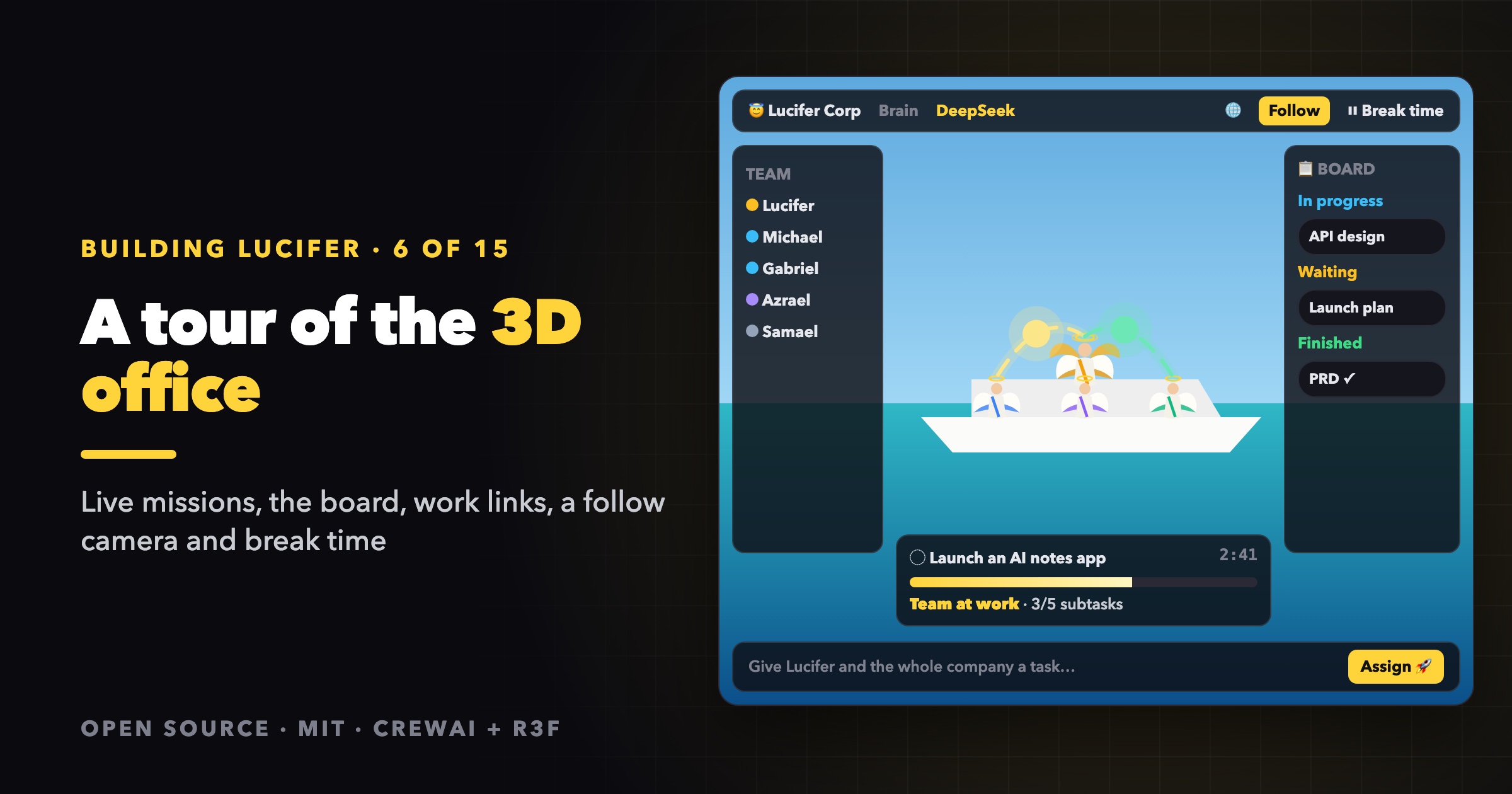

Building Lucifer: an open-source AI company you can watch · ⭐ GitHub
🚀 Start here: 1. Meet Lucifer · 2. Why I built it · 3. Architecture
📖 Use it: 4. Getting started · 5. Connect an LLM · 6. Office tour
🛠 Build the engine: 7. Org chart in YAML · 8. Real delegation · 9. Sandboxed tools · 10. Simulation brain
🎨 Build the office: 11. 3D office with R3F · 12. WebSocket + zustand · 13. Visualizing workflow
🧭 What's next: 14. Roadmap · 15. Contributing
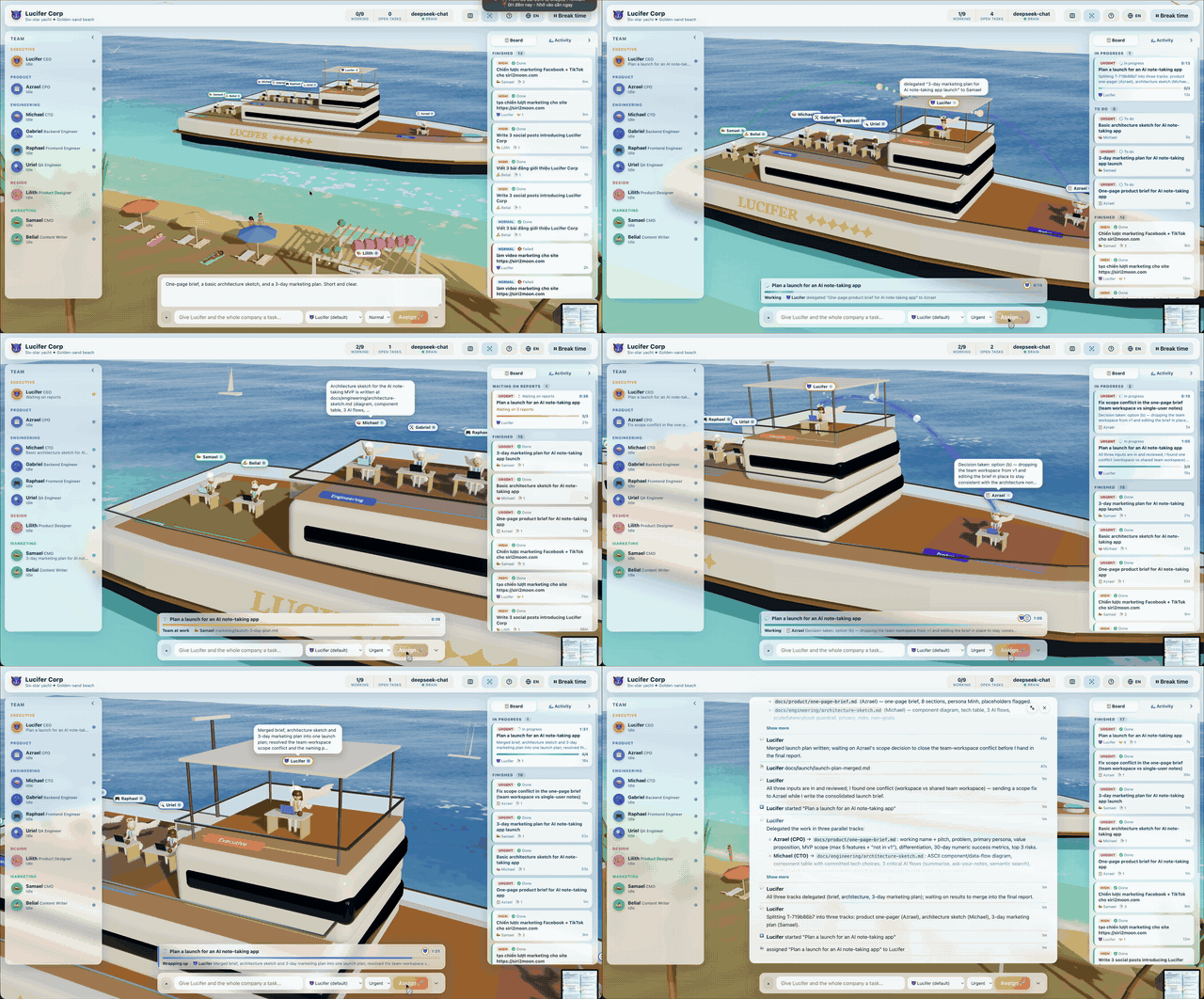
4× speed. Watch the full video on GitHub.
The Lucifer office is where you watch your AI company work and where you steer it. This is a guided tour of every part of the screen. If you haven't started it yet, see Getting started first.
The layout
┌────────────────────────── top bar ───────────────────────────┐
│ Company · Brain · Working · Open tasks   🌐  Guide  Follow  ⏸ │
├──────────┬─────────────────────────────────────┬──────────────┤
│  Team    │                                     │ Board        │
│  roster  │        the yacht, the sea           │ ‑ or ‑       │
│          │        and the beach (3D)           │ Activity     │
│          │                                     │              │
│          │   ┌─ live missions ───────────────┐ │              │
│          │   └───────────────────────────────┘ │              │
│          │   [ assign bar ......... Assign 🚀 ] │              │
└──────────┴─────────────────────────────────────┴──────────────┘
Every panel can collapse to a small handle at the screen edge, so the scene gets more room. Press H to hide them all and just watch.
The scene
The company works on a yacht anchored off a beach. Each deck is a department, laid out automatically from the org chart: the head's department gets the sky deck, the biggest departments take the largest decks, and teams that don't fit work from a pergola on the beach.
Every employee is an angel at a desk. You can read their state at a glance:
| What you see | Status |
|---|---|
| Bright blue laptop screen, the angel types busily | Working, running a tool |
| Violet screen pulsing, small violet orbs rising above the head | Thinking, waiting on the model |
| Amber screen, amber crystals spinning above the head | Waiting on reports |
| Calm screen, relaxed pose | Idle |
| Screen off, standing up | Off duty, the company is on break |
The same colors appear as a dot next to each name in the Team panel. The halo glows brighter while an angel works. Speech bubbles float above their heads with progress updates, thoughts, delegations and results. Lucifer, the CEO, is easy to spot: a seraph with two pairs of golden wings.
Click an angel (or a name in the Team panel) and the camera flies to them. Their drawer shows their role, who they report to, tasks done and failed, tokens used, model and effort, their recent tasks and their latest activity.
Drag to orbit, scroll to zoom. Click empty space or press Esc to go back.
Live missions
Every request you give appears as a mission card just above the assign bar, the moment you send it:
- A status glyph and the title. A spinner while working, an hourglass while waiting, a check when done.
- The crew. Avatars of the angels working on it right now.
- A running clock.
- A progress bar that streams while work moves and settles when it ends.
- The phase: Queued → Working → Team at work → Wrapping up → Done (or Failed or Cancelled).
- The latest thing that happened, for example "🧠 Michael delegated "API design" to Gabriel".
Up to three missions show at once, with a "+N more" toggle. A finished mission stays for about 20 seconds so you see it land, then leaves. Click a mission to open its details.
Work links and comets
On the yacht, a glowing arc joins each manager to every report holding one of their open subtasks. The arc tells you about the work:
- Light flows down the arc (moving dashes and white dots) while the report is actively working.
- A faint glow means the subtask is queued and not started yet.
- A gold comet flies down the arc every time work is delegated.
- A green comet flies back up every time a report finishes.
- Links of the mission you have selected glow brighter.
Together they make the delegation tree visible in space: you can see that the CTO is waiting on three engineers, two of whom are busy.
The follow camera
By default the camera follows the work. It glides in to frame everyone who is thinking or working, plus both ends of every hand-off from the last few seconds, and pulls back to the overview once the company goes quiet.
It's polite about it:
- It holds each shot for at least 2.5 seconds, so it doesn't twitch with every event.
- Drag or zoom and you're in control. Follow mode waits 20 seconds after you let go before it takes over again.
- Press
F(or the follow button in the top bar) to turn it off completely. Your choice is remembered.
The board and the activity feed
The right panel has two tabs.
📋 Board is a kanban with four columns: In progress, Waiting on reports, To do and Finished. Cards flash when they change and show:
- the status glyph and a running clock,
- the step they're at and a live line with the latest activity,
- subtask progress, for example "2/3 subtasks", and who they're waiting on.
🌊 Activity is the live feed of everything that happens in the company, newest first.
The task drawer
Click any task card or mission to open its drawer. At the top is the workflow of the whole mission it belongs to:
- a stepper: Received → Working → Team → Wrap-up → Done. Solo tasks skip the team steps.
- a progress bar and a status sentence, for example "2/5 subtasks finished",
- the delegation tree: every task in the mission with its assignee, status and clock, and a live status line on each node that is working. Click a node to jump to that task.
Below it you'll find the description, the log, the result, and the files the task produced. Open a file in the full-screen viewer to read it, with Markdown rendered. You can cancel a task from here, and all of its open subtasks are cancelled with it.
Assigning work
The assign bar at the bottom has:
- a title field (press Enter to send) and ▴ for a longer description,
- an assignee. It defaults to the head of the company, or pick any angel to skip the hierarchy,
- a priority: low, normal, high or urgent.
Write briefs the way you'd write them for a person: the goal, the expected output and file names. "A PRD in docs/prd.md" works better than "think about the product".
Break time
Press ⏸ Break time in the top bar and the engine pauses. Running tasks go back to the queue to be picked up again later. The angels leave their desks and fly ashore: coffee at the Heaven's Brew bar, a swim, sunbathing on a towel, a stroll, a chat in a group or a glide over the sea. Press ▶ Clock in and they fly straight back to their desks.
Shortcuts
| Key | Action |
|---|---|
H | Hide or show all panels |
F | Turn follow mode on or off |
[ | Collapse or show the team panel |
] | Collapse or show the board |
Esc | Close details and return to the overview |
? | Open the guide |
Language
The UI is available in English and Vietnamese. The first visit follows your browser's language, and the 🌐 menu switches and remembers your choice. Agents answer in the language you write your request in, whatever the UI language is.
Want to know how it's built? Building a 3D office with React Three Fiber and Visualizing workflow cover the scene and the live-work features. The code is on GitHub at siri2moon/lucifer.
Lucifer is open source under the MIT license. Clone it, run it for free with the simulation brain, and ⭐ star it if you'd like to follow along: github.com/siri2moon/lucifer.
Next in the series: Design Your Own AI Company in YAML.