
A fresh EC2 instance greets you with [ec2-user@ip-172-31-24-187 ~]$, a beige prompt and the Amazon Linux bird logo. That's fine for one server. With three of them open in different tabs (dev, staging, the box you're about to docker system prune on), the ip-based hostname becomes a real risk.
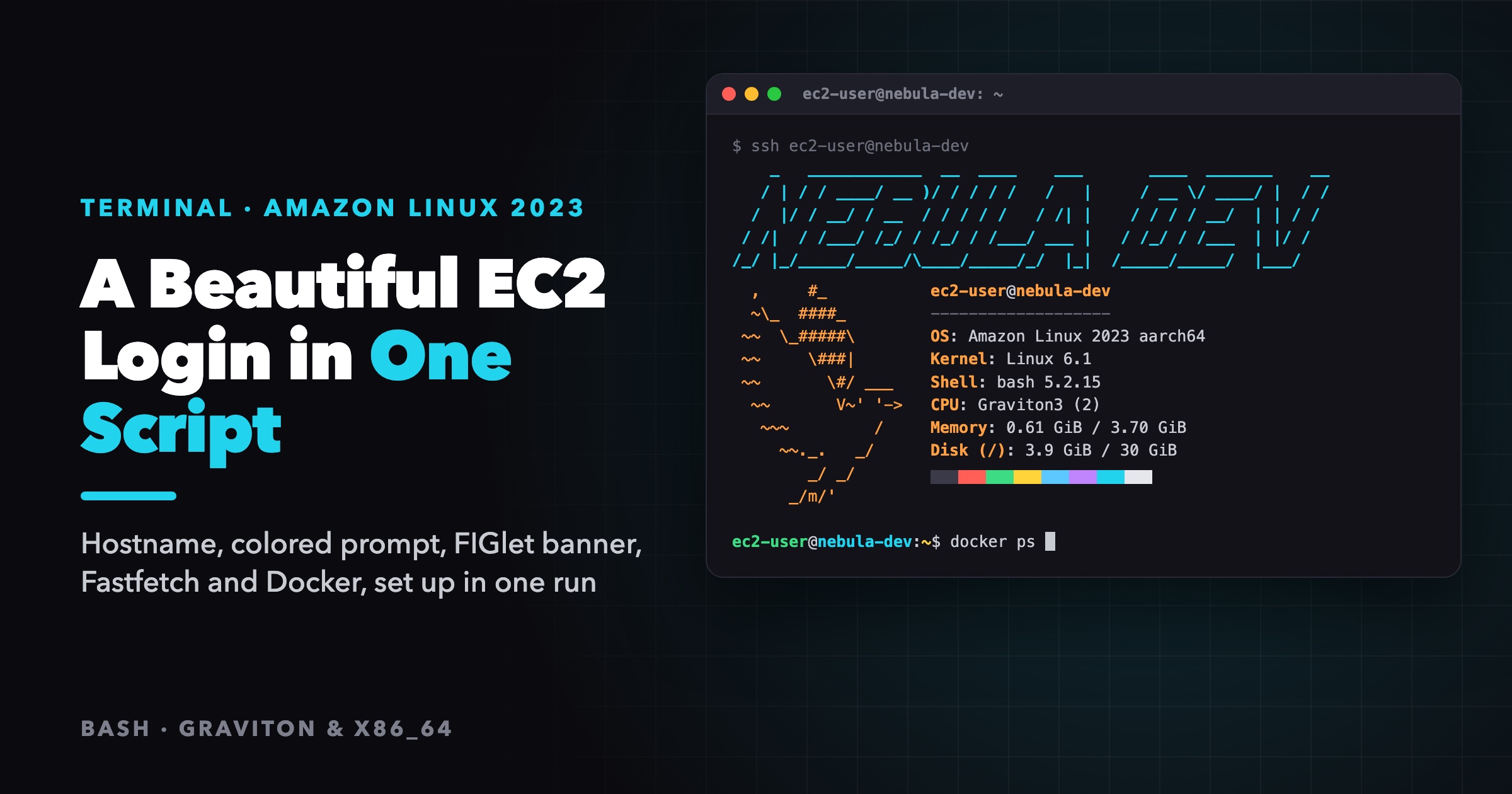
This post walks through one Bash script that turns a stock Amazon Linux 2023 instance into this:
- a hostname you chose, kept across reboots
- a colored prompt: user in green, host in cyan, directory in yellow
- a big ASCII banner in FIGlet's Slant font on every SSH login
- a Fastfetch summary of the machine (OS, kernel, CPU, memory, disk)
- the stock Amazon Linux logo removed
- Docker usable without
sudo
It runs on both Graviton (ARM64) and x86_64 instances, and you can run it again safely. I tested every step below in Amazon Linux 2023 containers on both architectures. Along the way it ran into four AL2023 quirks that can break a setup script like this, and each one gets its own section.
If you only want the pieces, two earlier posts cover them separately: FIGlet welcome banners and colored cloud prompts. This one puts them together into a single script.
What You Get
On SSH login:
    _   ____________  __  ____    ___       ____  _______    __
   / | / / ____/ __ )/ / / / /   /   |     / __ \/ ____/ |  / /
  /  |/ / __/ / __  / / / / /   / /| |    / / / / __/  | | / /
 / /|  / /___/ /_/ / /_/ / /___/ ___ |   / /_/ / /___  | |/ /
/_/ |_/_____/_____/\____/_____/_/  |_|  /_____/_____/  |___/

  ,     #_            ec2-user@nebula-dev
  ~\_  ####_          -------------------
 ~~  \_#####\         OS: Amazon Linux 2023 aarch64
 ~~     \###|         Kernel: Linux 6.1
 ~~       \#/ ___     Shell: bash 5.2.15
  ~~       V~' '->    CPU: ...
   ~~~         /      Memory: ...
     ~~._.   _/       Disk (/): ...
        _/ _/
      _/m/'

ec2-user@nebula-dev:~$
The banner is cyan by default and the prompt is colored. Pick a different banner color per environment and you can tell prod from dev before you read a single word.
Prerequisites
- An EC2 instance running Amazon Linux 2023, on any instance type (Graviton or Intel/AMD).
- SSH access as
ec2-user, which has passwordlesssudoby default. - Outbound internet access from the instance, to reach the dnf repositories and GitHub.
The Script
Save this as init-beautiful-ec2.sh. The only lines you need to edit are the three in the configuration block.
#!/usr/bin/env bash
# ==============================================================================
# init-beautiful-ec2.sh: make a fresh Amazon Linux 2023 instance nice to SSH into
#   - custom hostname
#   - colored PS1 prompt
#   - Fastfetch system summary (Graviton/ARM64 or x86_64)
#   - FIGlet ASCII banner in the Slant font
#   - no stock Amazon Linux logo
#   - Docker usable without sudo
# Run it once as ec2-user. Running it again is safe.
# ==============================================================================

set -e

# ==============================================================================
# CONFIGURATION: change these per server
# ==============================================================================
NEW_HOSTNAME="nebula-dev"
BANNER_TEXT="NEBULA DEV"

# ANSI colors: \e[1;36m Cyan | \e[1;32m Green | \e[1;33m Yellow | \e[1;35m Magenta | \e[1;31m Red
BANNER_COLOR="\e[1;36m"
# ==============================================================================

WORKDIR=$(mktemp -d)
trap 'rm -rf "$WORKDIR"' EXIT

echo "=== [1/7] Setting hostname to '${NEW_HOSTNAME}' ==="
sudo hostnamectl set-hostname "${NEW_HOSTNAME}"
# Tell cloud-init the hostname is ours, so a reboot does not put the
# ip-172-31-x-x name back.
echo "preserve_hostname: true" | sudo tee /etc/cloud/cloud.cfg.d/99-preserve-hostname.cfg > /dev/null

echo "=== [2/7] Installing build tools ==="
sudo dnf update -y
# No `curl` here on purpose: AL2023 ships curl-minimal, which already provides
# /usr/bin/curl, and asking for the full package makes dnf refuse the whole
# transaction.
sudo dnf install -y gcc make git wget jq tar

echo "=== [3/7] Silencing the stock Amazon Linux logo ==="
# The logo lives in /usr/lib/motd.d/30-banner. A same-named link to /dev/null
# in /etc/motd.d overrides it, and survives system-release package updates.
sudo mkdir -p /etc/motd.d
sudo ln -sf /dev/null /etc/motd.d/30-banner

echo "=== [4/7] Installing Fastfetch ==="
case "$(uname -m)" in
  aarch64) FASTFETCH_ARCH="aarch64" ;;
  x86_64)  FASTFETCH_ARCH="amd64" ;;
  *) echo "No Fastfetch build for $(uname -m)" >&2; exit 1 ;;
esac

FASTFETCH_URL=$(curl -fsSL https://api.github.com/repos/fastfetch-cli/fastfetch/releases/latest \
  | jq -r --arg suffix "linux-${FASTFETCH_ARCH}.tar.gz" \
      '.assets[] | select(.name | endswith($suffix)) | .browser_download_url' \
  | head -n 1)

# Over GitHub's anonymous rate limit (60 requests/hour per IP) the API returns
# no assets, jq prints nothing, and set -e does not notice. Stop here with a
# useful message instead of letting wget fail with a confusing one.
if [ -z "$FASTFETCH_URL" ]; then
  echo "Could not read the Fastfetch release from the GitHub API." >&2
  echo "Usually the hourly rate limit. Check with:" >&2
  echo "  curl -s https://api.github.com/rate_limit" >&2
  echo "Or pick a URL by hand from" >&2
  echo "  https://github.com/fastfetch-cli/fastfetch/releases/latest" >&2
  exit 1
fi

wget -q -O "$WORKDIR/fastfetch.tar.gz" "$FASTFETCH_URL"
tar -xzf "$WORKDIR/fastfetch.tar.gz" -C "$WORKDIR"
sudo install -m 755 "$WORKDIR/fastfetch-linux-${FASTFETCH_ARCH}/usr/bin/fastfetch" /usr/local/bin/fastfetch

echo "=== [5/7] Building FIGlet from source ==="
git clone --depth 1 https://github.com/cmatsuoka/figlet.git "$WORKDIR/figlet"
make -C "$WORKDIR/figlet"
sudo make -C "$WORKDIR/figlet" install

echo "=== [6/7] Letting $(id -un) use Docker without sudo ==="
if ! command -v docker &> /dev/null; then
  sudo dnf install -y docker
fi
sudo usermod -aG docker "$(id -un)"
sudo systemctl enable --now docker

echo "=== [7/7] Adding prompt and banner to ~/.bashrc ==="
BASHRC_MARKER="# --- EC2 CUSTOM PROMPT AND WELCOME BANNER ---"

if ! grep -qF "$BASHRC_MARKER" ~/.bashrc; then
  {
    echo ""
    echo "$BASHRC_MARKER"
    # %q quotes the values so any text is safe inside .bashrc.
    printf 'WELCOME_BANNER_TEXT=%q\n' "$BANNER_TEXT"
    printf 'WELCOME_BANNER_COLOR=%q\n' "$BANNER_COLOR"
    # Quoted 'EOF': everything below is written exactly as shown.
    cat << 'EOF'
# user (green) @ host (cyan) : directory (yellow)
export PS1='\[\e[1;32m\]\u\[\e[0m\]@\[\e[1;36m\]\h\[\e[0m\]:\[\e[1;33m\]\w\[\e[0m\]\$ '

# Banner + system summary only for the first shell of an SSH login,
# not for every subshell, script or tmux pane.
if [[ $- == *i* && -n ${SSH_TTY:-} && ${SHLVL:-1} -eq 1 ]]; then
  echo -e "${WELCOME_BANNER_COLOR}"
  command -v figlet > /dev/null && figlet -f slant "${WELCOME_BANNER_TEXT}"
  echo -e "\e[0m"
  command -v fastfetch > /dev/null && fastfetch
fi
# --- END EC2 CUSTOM PROMPT AND WELCOME BANNER ---
EOF
  } >> ~/.bashrc
  echo ".bashrc updated."
else
  echo ".bashrc already configured, skipping."
fi

echo ""
echo "=========================================================================="
echo " Done. Hostname: ${NEW_HOSTNAME}"
echo " Log out and SSH back in to see the banner and to pick up the docker group."
echo "=========================================================================="
Run It
Copy the script to the instance and run it as ec2-user (not with sudo: it writes to your ~/.bashrc and adds you to the docker group):
# from your laptop
scp -i ~/.ssh/my-key.pem init-beautiful-ec2.sh ec2-user@<public-ip>:~

# on the instance
bash init-beautiful-ec2.sh
It takes a minute or two, mostly dnf update and compiling FIGlet. When it finishes, log out and SSH back in. Two things only take effect on a new login: the banner, and membership in the docker group.
Running the script a second time is harmless. dnf skips packages that are already installed, the binaries are overwritten in place, and the .bashrc block is guarded by a marker line, so it is never appended twice.
Step by Step: What Each Part Does (and the Traps It Avoids)
1. Hostname that survives a reboot
sudo hostnamectl set-hostname "nebula-dev"
echo "preserve_hostname: true" | sudo tee /etc/cloud/cloud.cfg.d/99-preserve-hostname.cfg
hostnamectl changes the hostname right away and writes it to /etc/hostname. The second line makes the name stick: cloud-init manages the hostname on EC2, and preserve_hostname: true tells it to leave yours alone on future boots. Putting it in its own file under cloud.cfg.d/ keeps the main cloud.cfg untouched, so package updates never conflict with your change.
The prompt's \h reads this hostname, so this one value is what you see in every prompt.
2. Build tools, and why curl is not in the list
sudo dnf install -y gcc make git wget jq tar
The obvious version of this line includes curl. On Amazon Linux 2023 that breaks the whole step. AL2023 ships curl-minimal, which already owns /usr/bin/curl. The full curl package wants the same path, so dnf refuses:
  - package curl-minimal-8.5.0-1.amzn2023.0.5.aarch64 from amazonlinux conflicts
    with curl provided by curl-8.21.0-5.amzn2023.0.2.aarch64 from amazonlinux
(try to add '--allowerasing' to command line to replace conflicting packages
 or '--skip-broken' to skip uninstallable packages)
There's one such line for every curl version in the repository, often hundreds of them, and then nothing is installed at all. dnf rejects the whole transaction, so gcc, git and everything else in the same command are skipped too, and the script dies a few lines later with a confusing error.
curl-minimal is the same curl command with fewer protocols compiled in, and HTTPS is all this script needs. --allowerasing would also make the error go away, but it does so by swapping out a base system package. That isn't worth it for a prompt and a banner.
jq and tar are in the list because step 4 needs them. A full EC2 AMI usually has tar already, but listing it costs nothing.
3. Removing the stock Amazon Linux logo
The bird logo you see on login is not in /etc/motd. On AL2023, /etc/motd is an empty file, so the common advice to "empty /etc/motd" quietly does nothing. The logo is a file owned by the system-release package:
$ ls /usr/lib/motd.d/
30-banner
$ rpm -qf /usr/lib/motd.d/30-banner
system-release-2023.12.20260930-0.amzn2023.noarch
SSH logins print it through pam_motd, which reads /etc/motd.d, /run/motd.d and /usr/lib/motd.d. When the same filename appears in several of these directories, only the first one is used. The pam_motd man page documents the clean way to silence a message: put a same-named symlink to /dev/null in /etc/motd.d.
sudo mkdir -p /etc/motd.d
sudo ln -sf /dev/null /etc/motd.d/30-banner
Deleting /usr/lib/motd.d/30-banner would work too, until the next dnf update reinstalls system-release and puts it back. The override in /etc survives updates.
4. Fastfetch from GitHub releases
Fastfetch is a fast, maintained successor to neofetch. It isn't in the AL2023 repositories (neither is FIGlet), so the script downloads the official build from GitHub:
case "$(uname -m)" in
  aarch64) FASTFETCH_ARCH="aarch64" ;;
  x86_64)  FASTFETCH_ARCH="amd64" ;;
esac

FASTFETCH_URL=$(curl -fsSL https://api.github.com/repos/fastfetch-cli/fastfetch/releases/latest \
  | jq -r --arg suffix "linux-${FASTFETCH_ARCH}.tar.gz" \
      '.assets[] | select(.name | endswith($suffix)) | .browser_download_url' \
  | head -n 1)
A few details here matter more than they look:
- Architecture mapping.
uname -msaysx86_64, but Fastfetch names its Intel buildamd64. Graviton reportsaarch64, which matches the asset name as is. jqwith an exact suffix, notgrep. A recent release has 60+ assets, and several look alike:fastfetch-linux-aarch64.tar.gz,fastfetch-linux-aarch64-polyfilled.tar.gz,.deb,.rpm,.zip. A loosegrep aarch64matches several of them. The classicgrep browser_download_url | cut -d : -f 2,3also keeps the space after the JSON colon, which handswgeta URL starting with a space.endswith("linux-aarch64.tar.gz")matches exactly one asset.- The empty-URL guard. Anonymous calls to the GitHub API are limited to 60 requests per hour per IP. Over the limit, the response has no assets,
jqprints nothing, andFASTFETCH_URLends up empty.set -edoes not catch this: the pipeline's exit status ishead's, andheadsucceeded at printing nothing. Without the guard, the next line runswget -O fastfetch.tar.gz ""and fails with an error about the output file, which sends you looking in completely the wrong place. The guard stops the script with the real cause and the command to check it.
The binary is copied to /usr/local/bin with install -m 755, which copies the file and sets its permissions in one command.
5. FIGlet, built from source
git clone --depth 1 https://github.com/cmatsuoka/figlet.git "$WORKDIR/figlet"
make -C "$WORKDIR/figlet"
sudo make -C "$WORKDIR/figlet" install
FIGlet is another package AL2023 doesn't ship. Older guides tell you to enable EPEL, but EPEL doesn't support Amazon Linux 2023. Building from source takes seconds, since it's a small C program. make install puts figlet in /usr/local/bin and its 18 bundled fonts, including slant, in /usr/local/share/figlet.
Everything is built inside mktemp -d, and trap 'rm -rf "$WORKDIR"' EXIT removes that directory when the script exits, even if it fails halfway. No leftover tarballs or source trees in your home directory.
Want a different look? Try the other bundled fonts before you decide:
for f in /usr/local/share/figlet/*.flf; do
  echo "== $(basename "$f" .flf)"; figlet -f "$f" "NEBULA"
done
standard, big, small and slant are the readable ones. The FIGlet guide has more on fonts and layout options.
6. Docker without sudo
sudo usermod -aG docker "$(id -un)"
sudo systemctl enable --now docker
This installs Docker if it's missing, adds the current user to the docker group, and starts the daemon now and on every boot. Group membership is read when you log in, so docker ps gives permission denied in the session where you ran the script. Log in again, or run newgrp docker to fix just the current shell.
Membership in the docker group is effectively root on that machine, because anyone in it can start a container that mounts /. That's normal for a personal dev box, but think twice on shared or production hosts.
7. The .bashrc block: prompt and banner
This is the part you'll see on every login, and it hides the subtlest bug in the whole script.
The heredoc trap. The tempting way to write this block is an unquoted heredoc, so that ${BANNER_TEXT} gets filled in:
cat << EOF >> ~/.bashrc
export PS1="\[\e[1;32m\]\u ... \$ "
if [[ \$- == *i* ]]; then ...
EOF
Inside an unquoted heredoc, a backslash escapes $. So the prompt's closing \$ is written to .bashrc as a plain $. Nothing errors, and the prompt looks right as ec2-user, but it now shows $ even as root instead of switching to #. You also have to remember to escape every $ that should stay literal (\$-) and not escape the ones that should expand. One missed backslash and something breaks silently.
The script avoids all of that by splitting the block in two:
printf 'WELCOME_BANNER_TEXT=%q\n'  "$BANNER_TEXT"
printf 'WELCOME_BANNER_COLOR=%q\n' "$BANNER_COLOR"
cat << 'EOF'
...
EOF
- The two configured values are written as variable assignments.
printf %qquotes them safely, so a banner text containing spaces or quotes can't break.bashrc. - Everything else is a quoted heredoc (
<< 'EOF'), which is copied byte for byte with no escaping rules to remember. What you read in the script is exactly what ends up in.bashrc.
The prompt. \u is the user, \h the hostname, \w the working directory, and \$ prints $ (or # for root). Each color code is wrapped in \[ ... \] so Bash knows those bytes take up no width; without the wrappers, long commands wrap at the wrong column and line editing gets garbled. The colored prompt guide goes through every escape code.
When the banner runs. A plain "is this shell interactive?" check ($- == *i*) runs the banner and Fastfetch in every new shell: every tmux pane, every bash you start by hand, every VS Code terminal. The script adds two more conditions:
if [[ $- == *i* && -n ${SSH_TTY:-} && ${SHLVL:-1} -eq 1 ]]; then
SSH_TTYis set only for an SSH session with a terminal, so it's skipped forssh host 'command'and for non-SSH shells.SHLVL -eq 1means this is the top-level shell of the login, not a shell started from inside another one.
The result is one banner per login.
Customize It Per Environment
The three variables at the top are the whole interface. One pattern that works well is to give each environment its own banner color, so you know where you are before you read anything:
| Environment | NEW_HOSTNAME | BANNER_TEXT | BANNER_COLOR |
|---|---|---|---|
| Development | nebula-dev | NEBULA DEV | \e[1;36m (cyan) |
| Staging | nebula-staging | STAGING | \e[1;33m (yellow) |
| Production | nebula-prod | PRODUCTION | \e[1;31m (red) |
To change the colors of the prompt itself, edit the PS1 line in the quoted heredoc. For example, make the host red on production by changing 1;36m after @ to 1;31m.
Run It Automatically at Launch (User Data)
To set up every new instance without logging in, embed the script in the instance's user data. User data runs as root with $HOME=/root, so switch to ec2-user explicitly. Otherwise the prompt goes into root's .bashrc and root gets added to the docker group:
#!/bin/bash
cat > /tmp/init-beautiful-ec2.sh << 'SCRIPT'
# ... paste the full script here ...
SCRIPT
su - ec2-user -c 'bash /tmp/init-beautiful-ec2.sh'
If you launch many instances at once from behind one NAT gateway, they all share one public IP and the GitHub API limit of 60 requests per hour. In that case, pin the Fastfetch URL to a specific release instead of asking the API for latest.
Troubleshooting
| Symptom | Cause | Fix |
|---|---|---|
Could not read the Fastfetch release from the GitHub API | GitHub's anonymous API limit (60/hour per IP) | Wait, check curl -s https://api.github.com/rate_limit, or hardcode the URL |
Hundreds of conflicts with curl provided by… lines | curl added back to the dnf install list | Remove it; curl-minimal already provides the command |
docker: permission denied right after the script | Group membership is read at login | Log out and back in, or run newgrp docker |
| No banner when connecting | The shell isn't a top-level SSH login (VS Code Remote, ssh host cmd, tmux) | Expected; run figlet -f slant "$WELCOME_BANNER_TEXT"; fastfetch by hand |
| Amazon Linux logo still shows | /etc/motd.d/30-banner link missing | sudo ln -sf /dev/null /etc/motd.d/30-banner |
| Hostname reverted after reboot | cloud-init setting missing | Check /etc/cloud/cloud.cfg.d/99-preserve-hostname.cfg contains preserve_hostname: true |
Undo Everything
Every change is contained, so removing it is short:
# remove the prompt + banner block from .bashrc
sed -i '/^# --- EC2 CUSTOM PROMPT AND WELCOME BANNER ---$/,/^# --- END EC2 CUSTOM PROMPT AND WELCOME BANNER ---$/d' ~/.bashrc

# bring back the Amazon Linux logo
sudo rm /etc/motd.d/30-banner

# remove the tools
sudo rm /usr/local/bin/fastfetch /usr/local/bin/figlet
sudo rm -rf /usr/local/share/figlet
Wrap-Up
The visible result is small: a name, some color, a banner. The script is worth reading for the four AL2023-specific traps it gets past, because each one breaks a naive version of this script on a fresh instance:
curlvscurl-minimal: one extra package name makes dnf install nothing at all.- The logo isn't in
/etc/motd: override/usr/lib/motd.d/30-bannerfrom/etc/motd.dinstead. - An empty API response gets past
set -e: check that the URL isn't empty before you use it. - Unquoted heredocs rewrite backslashes: write configured values with
printf %qand the rest as a quoted heredoc.
Put it in your provisioning repo, change the three variables per environment, and every server you SSH into will tell you where you are before you type anything.